
Schools offering both virtual and in-person conferences can choose which time slots display the extra information, such as a Zoom, Google Meet, or Microsoft Teams link.
A school might be offering virtual conferences from 3:00 - 3:45 and in-person conferences from 3:45 - 4:15.
The school can display the extra information (such as virtual conference information) for the virtual time slots while omitting it for the in-person conferences.
How it works
Each time slot has an option labeled:
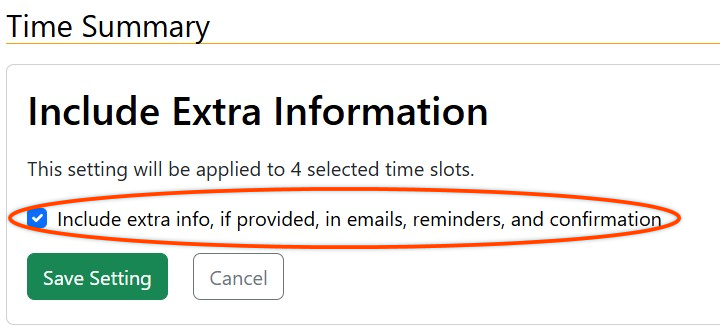
Include extra info, if provided, in emails, reminders, and confirmation
The option is enabled by default. Leave it checked for virtual time slots that should include meeting links or other extra information. Uncheck it for in-person time slots that should not display or send that information.
Where extra information comes from
Extra information may be entered in several places, including:
- The schedule
- An individual conference time slot
- A staff member’s settings for the school
When the option is unchecked, extra information from all of these locations is not displayed nor emailed to parents. Regular comments and other appointment details are not affected.
Setting the option when creating time slots
When adding dates and times through the setup wizard, look for the Include extra info checkbox.
- Check it for virtual time slots.
- Uncheck it for in-person time slots.
- Set it separately for each group of dates and times in the wizard.
Changing an existing time slot
To change one time slot:
- Open the staff member’s schedule.
- Edit the time slot.
- Check or uncheck Include extra info, if provided, in emails, reminders, and confirmation.
- Save the changes.
Changing multiple time slots
School administrators can update several time slots at once:
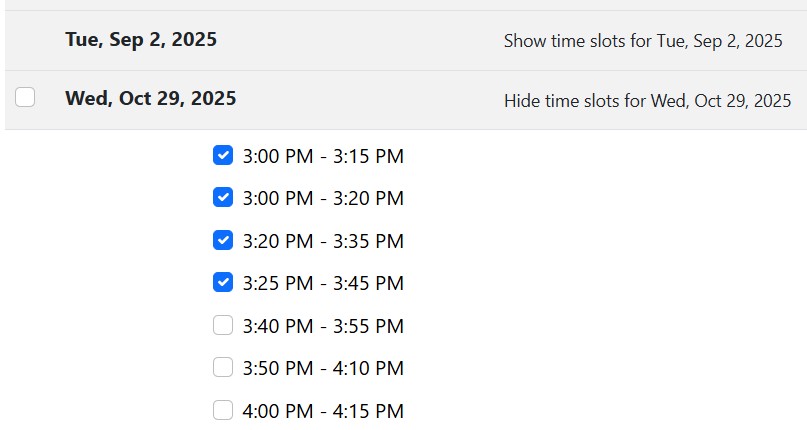
- Open Summaries > Time Summary.
- Select the time slots you want to change.
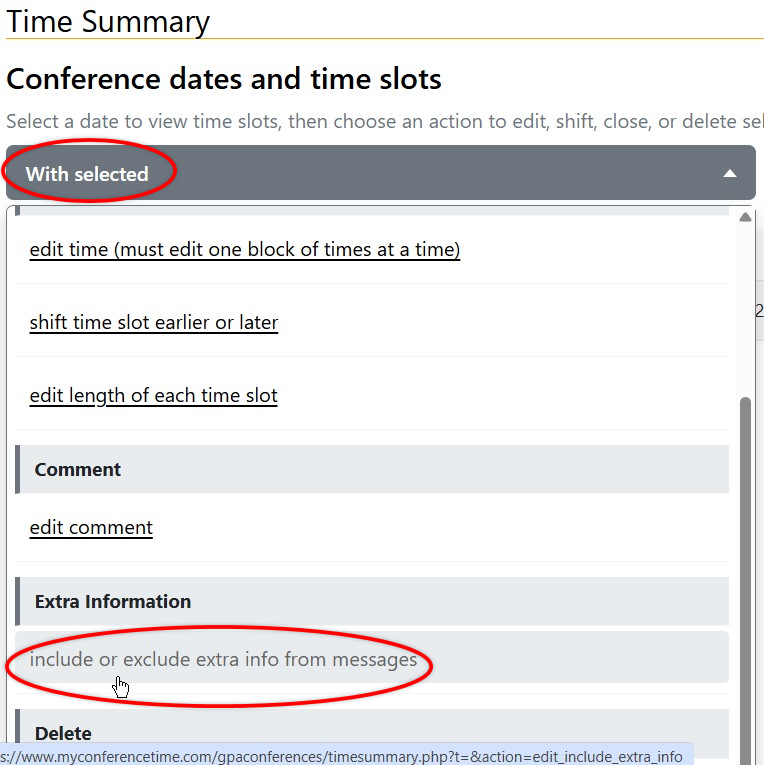
- From the "with selected..." dropdown menu, choose Include or exclude extra info from messages.
- Choose whether to include or exclude the extra information.
- Save the change.
What the setting controls
When enabled, available extra information may appear in:
- The registration confirmation page
- Appointment confirmation emails
- Reminder emails
- Calendar appointment details
When disabled, that extra information is omitted for the selected time slot.